
Notes from your PDFs and EPUBs, neatly organised.
Highlight a passage, type or write with Apple Pencil, and it lands in that book’s notebook, formatted and linked back to the page.
See how it worksFeatures
A reading notes app built around the notebook
Everything you mark in a book ends up in one place, in order, ready to reread.
The core idea
The notebook is the centre
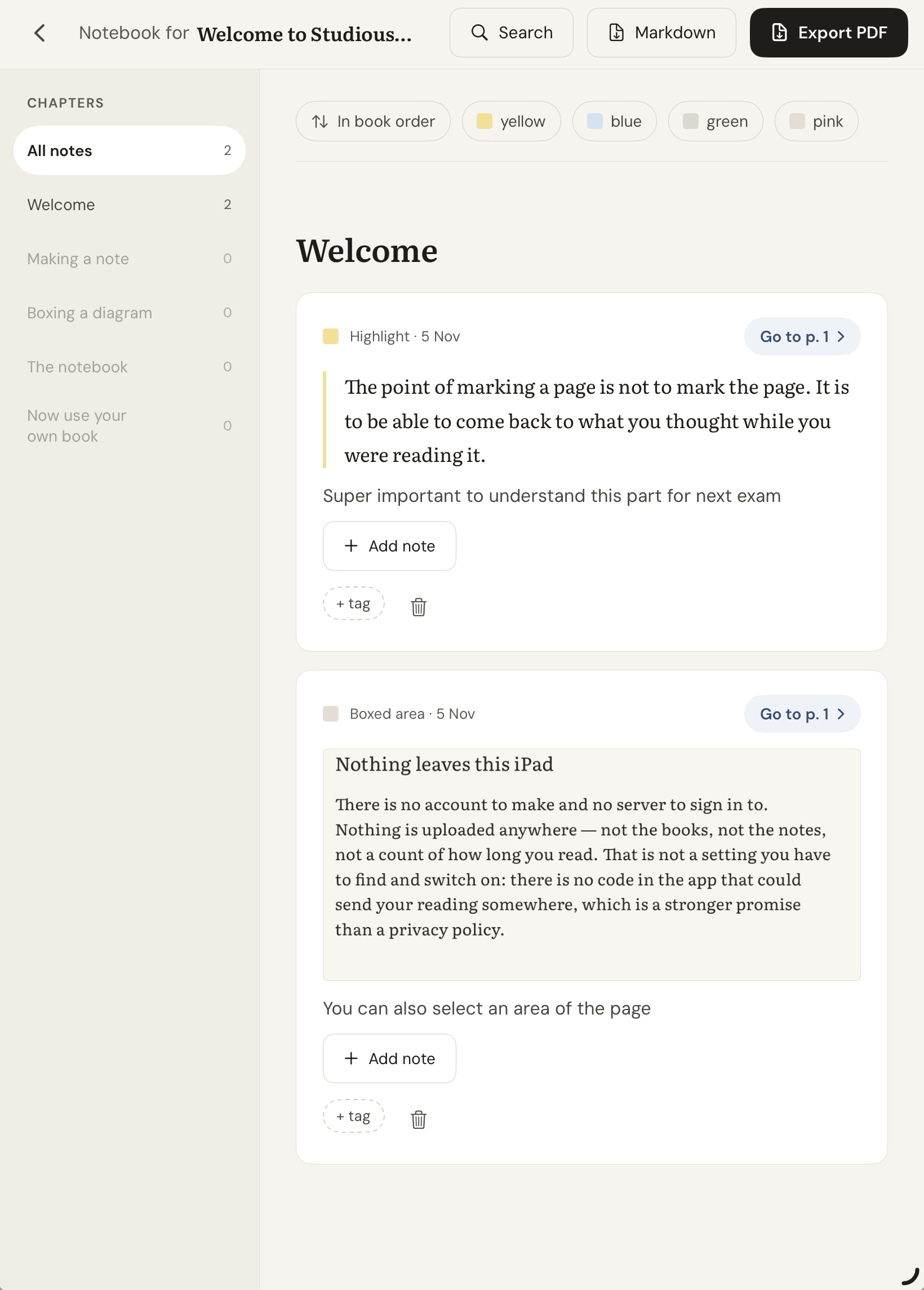
A notebook is the page StudiousNotes keeps for each book: your highlights and notes in reading order, grouped by chapter.
Chapters run down the side, and every entry has a “Go to p. 1” link back to its passage. No copying, no pasting, no reformatting.
Write by hand, or type
Apple Pencil note-taking that stays as handwriting, in black, blue, red or green, with an eraser and undo. It appears in the notebook and in the PDF export.
- Black
- Blue
- Red
- Green
More than one thought per passage
Reread a book and add a dated note under the first one, in the same entry, rather than a second row somewhere else.
Notes keep the words they quote
Each note stores the quoted text and the words around it, not only a position on the page.
Draw a Box over any part of a page, in a PDF or an e-book (a table, a chart, a diagram), and the picture is kept with the note. It works on scanned pages too, where there is no text to select.
Export to PDF or Markdown
Export any notebook to PDF or Markdown, highlights and all. Back up everything to one file that is mostly plain text, so it stays readable without the app.
How it works
From the page to the notebook, in three steps
Annotate a PDF or an EPUB on your iPad, and your highlights and notes collect in one notebook per book: study notes from PDFs, without the copying.
- Step 1 of 3
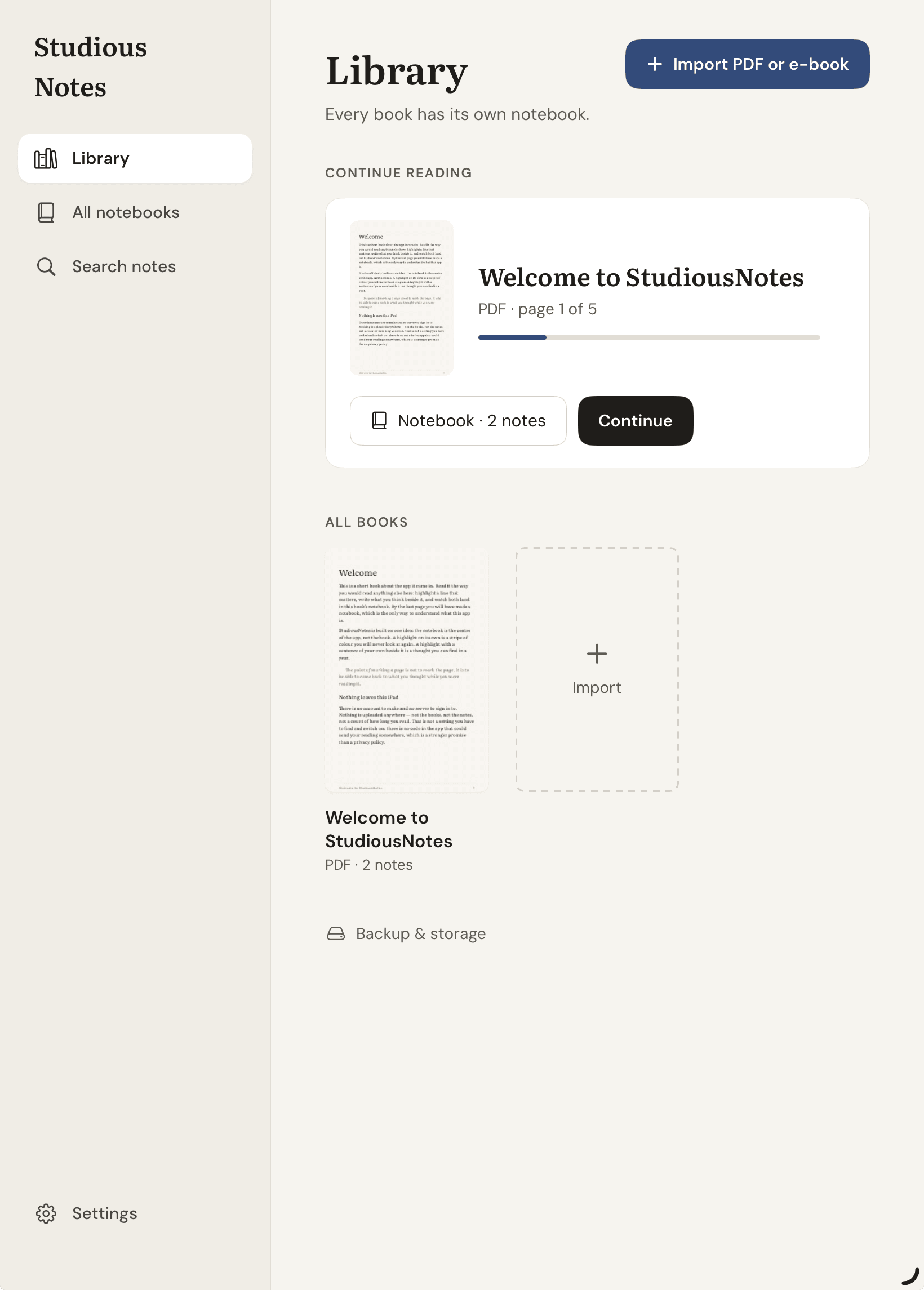
Import a PDF or EPUB
Pick a book from the Files app: iCloud Drive, On My iPad, or anywhere else Files can reach.
- Step 2 of 3
Highlight and write
Select a passage with your finger or Apple Pencil and choose a colour, or pick up one of the four highlighter pens at the edge of the page and draw over the words. Then add your note, typed or written by hand.
- 2.1
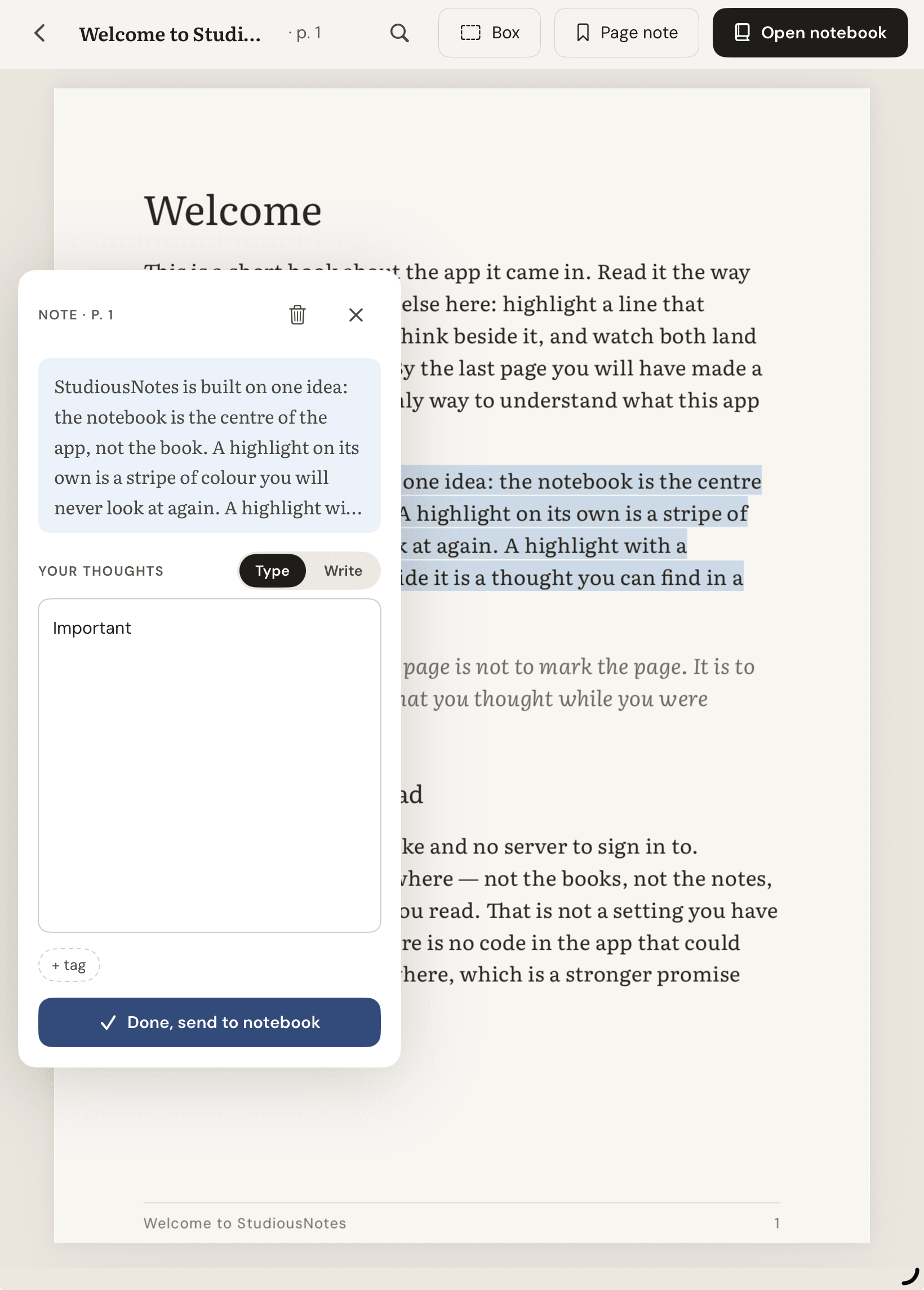
Type a note
The note panel opens with the passage quoted at the top. Type your thoughts under it, then tap Done to send it to the notebook.
- 2.2
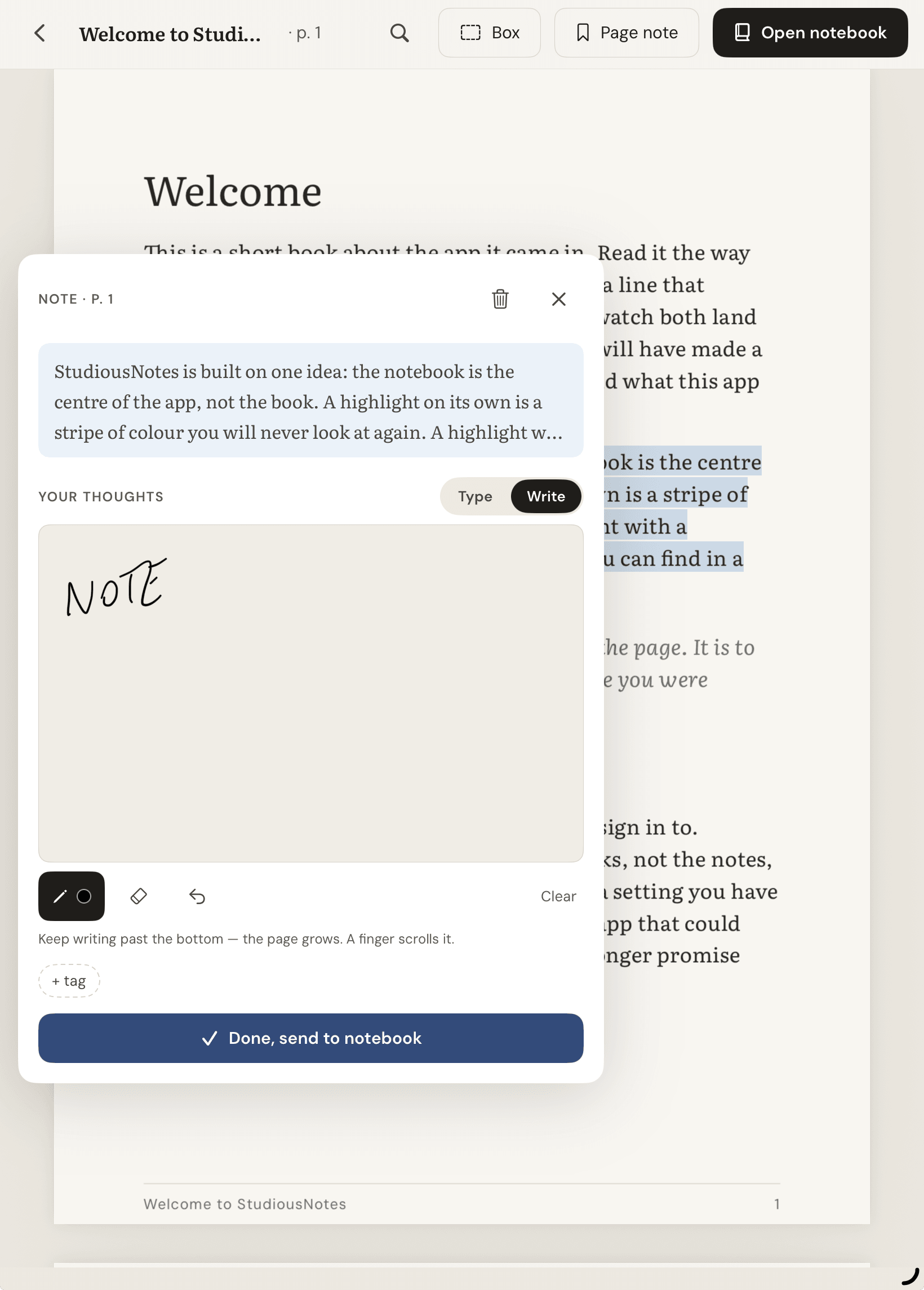
Write it by hand
Switch to Write and use Apple Pencil, in black, blue, red or green, with an eraser and undo. Your handwriting stays as handwriting.
- Step 3 of 3
Read the notebook
Every passage you mark and every note you write is already there, formatted, in reading order. Each entry links back to the exact passage.
Nothing leaves your iPad
No account, no server, no analytics. Reading, highlighting, notes and exports all work offline. The only connection the app makes is to Apple’s App Store, to show the upgrade’s price and check whether you’ve bought it. None of your books or notes are part of it.
Your books, highlights and notes live in the app’s own storage on your iPad. The only way anything leaves is a backup or an export you ask for yourself.
This website keeps the same promise: no cookies, no analytics, and nothing loaded from anywhere else.
Price
Free to start. One price for unlimited books.
Two books
Freeto download
- Up to two books of your own
- Every feature included
- The welcome book doesn’t count
Unlimited books
$24.99one-time, US price
- As many books as you like
- One in-app purchase, no subscription
- Restore it on another iPad
Everything works in the free version: reading, highlighting, typed and handwritten notes, the notebook, search, both exports, and backup and restore. Reach the limit and you keep full access to everything you already have.
Outside the US, the App Store shows the price in your own currency.
Questions
Common questions
- What is StudiousNotes?
- StudiousNotes is an iPad app for reading PDFs and EPUBs that collects your highlights and notes into one notebook per book, each linked back to the exact passage.
- Can I export PDF highlights to Markdown on iPad?
- Yes. Any notebook in StudiousNotes exports as Markdown or PDF, with its quoted passages and notes. Handwritten notes and boxed pictures are included in the PDF export; the Markdown file holds the text.
- Does StudiousNotes work offline?
- Yes. Reading, highlighting, notes and exports all work without a connection, and there’s no account. Your books and notes stay on your iPad. The only connection the app makes is to Apple’s App Store, to show the upgrade’s price and check whether you’ve bought it. None of your books or notes are part of it.
- Can I write notes with Apple Pencil?
- Yes, in black, blue, red or green. Handwriting stays as handwriting and appears in the notebook and in the PDF export. Handwriting isn’t searchable.
- How much does StudiousNotes cost?
- It’s free to download and holds up to two books of your own (the welcome book doesn’t count). A one-time in-app purchase of $24.99 in the US unlocks unlimited books (the App Store shows the price in your own currency); there’s no subscription. Every feature is in the free version.
- Is everything included in the free version?
- Yes. The only limit is the number of books: every feature, including both exports and backup, works the same in the free version.

Read with the notebook beside you
Coming soon to the App Store for iPad